This article describes how to set up your Ewon Edge so your LAN devices can get access to the Internet or WAN through it.
APPLICABLE PRODUCTS
Ewon Edge
PRE-REQUISITES
Have access to the Ewon Cloud account where the Ewon Edge is registered.
IN THIS ARTICLE
INTRODUCTION
In a typical Ewon Edge installation, communication between the remote user and devices on the Ewon Edge LAN occurs through a secure VPN connection.
In applications where a device on the Ewon Edge LAN requires internet access, the Ewon Edge can be configured to allow traffic from its LAN network to its WAN network. This will only allow an outbound connection for the LAN devices.
For example, a PC or other device connected to a machine may need internet access to send status or alarm notification emails. The Ewon Edge can be configured to provide this internet access through its WAN connection.
Note:
Internet traffic generated by a device on the Ewon Edge LAN does not travel through the remote-access VPN tunnel. If the WAN network uses firewall rules that restrict internet traffic, additional configuration by the site's network administrator may be required.
CONFIGURE THE EWON EDGE
For a step-by-step guide, please see: Ewon Edge LAN Device Internet access Setup
To configure your Ewon Edge to allow Internet (WAN) access to LAN devices, navigate to your Ewon Edge's configuration space -> Gateway -> Networks -> Network Policies -> Add Policy
Here you will add your new network policy for your Ewon Edge and specify which LAN device the policy will be applied to. Complete your policy depending on what IP address(es) your LAN device will need to reach and which transport layer protocol they will be allowed to reach it by.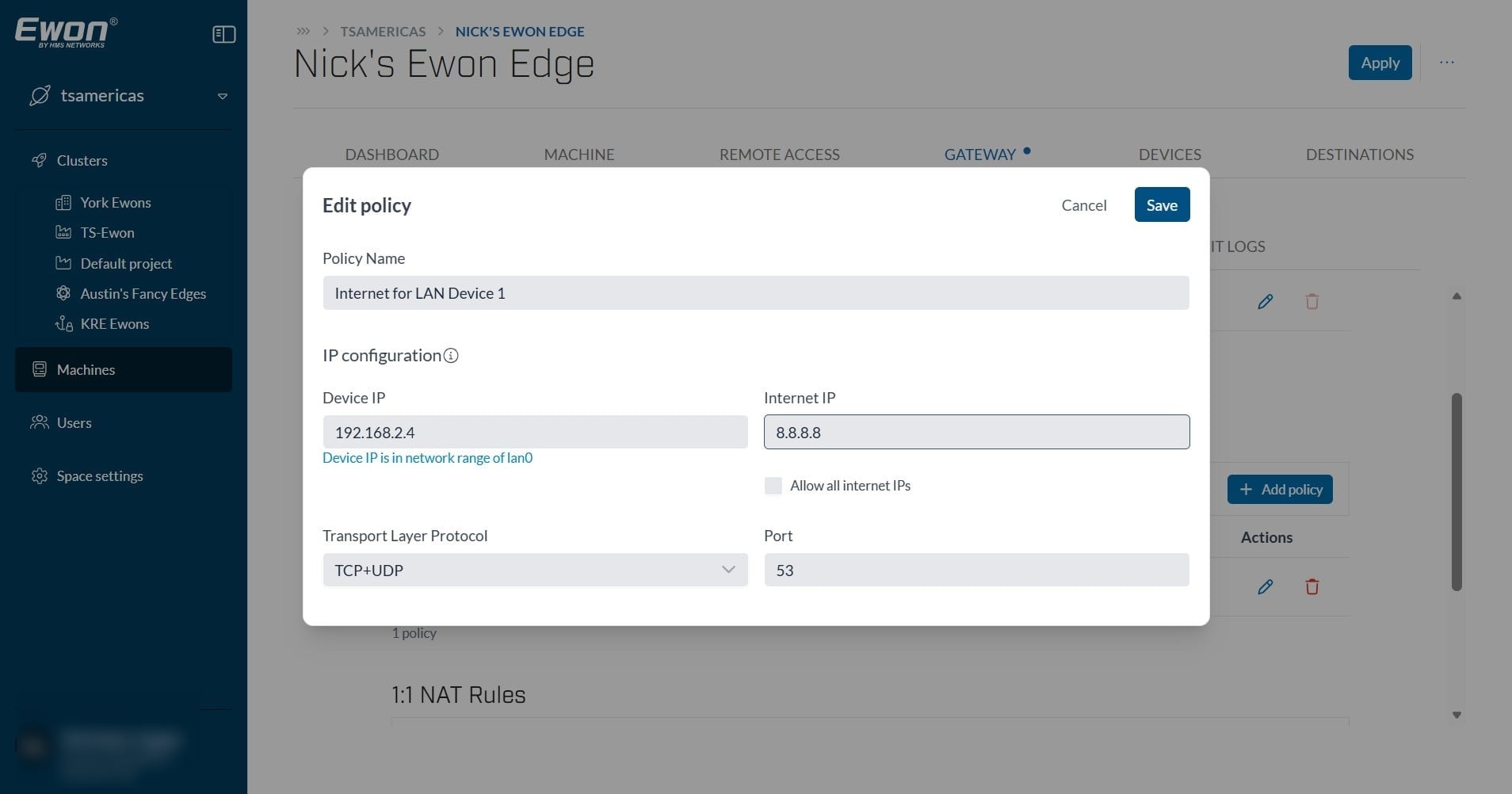
Once your policy is completed, click save and you will now see the applied network policy. 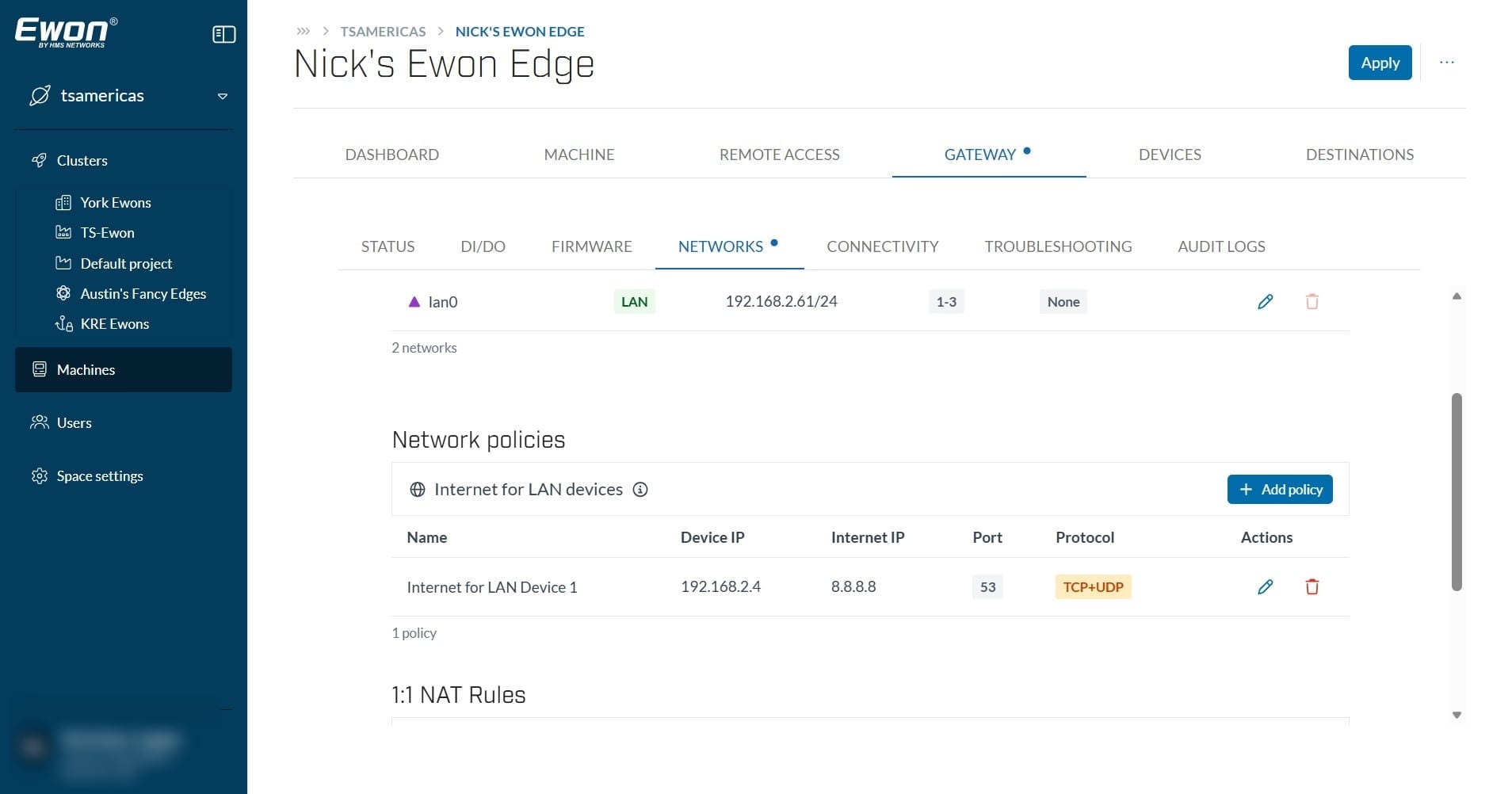
Please note, if you need multiple IP addresses accessible by your LAN device, and do not wish to allow all internet IPs to be accessible, you will need to add additional policies for your device.