This article explains how to enable and use Email Login Approval for your Talk2m users. As an alternative to two-factor authentication (2FA) using SMS, you can use the Email Verification Code feature, which sends a one-time code to the user's email address to verify their login.
APPLICABLE PRODUCTS
Talk2m pro, Talk2m light, Talk2m free*
PRE-REQUISITES
You need to use Ecatcher version 7.1.0 or later to configure and use this login feature.
Administrator rights are required to manage users and enable the Code by Email feature.
IN THIS ARTICLE
Things to know before using Code by Email
- Once Code by Email is enabled for a user, the user must use Ecatcher version 7.1.0 or later on their PC. It is not possible to log in with an older Ecatcher version. In this case, the following message will be displayed: "This operation is no longer supported by this version of Ecatcher. Please visit www.talk2m.com to download the latest version of Ecatcher."
- Code by Email is currently not supported by the Ecatcher mobile app. However, M2Web does support Code by Email authentication.
- If you enable Code by Email, make sure that all administrators of your account use Ecatcher version 7.1.0 or later. Otherwise, they may experience unexpected behavior or display issues when managing users for whom Code by Email has already been enabled.
Enable Code by Email for your Talk2m users
When adding a new user with Ecatcher version 7.1 or later, you can choose between two login approval methods: Code by Email and Code by SMS.
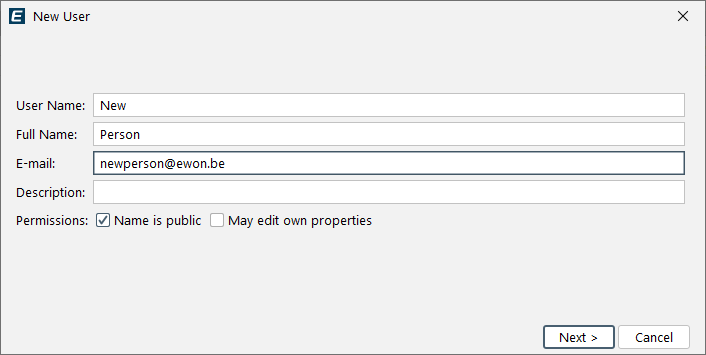
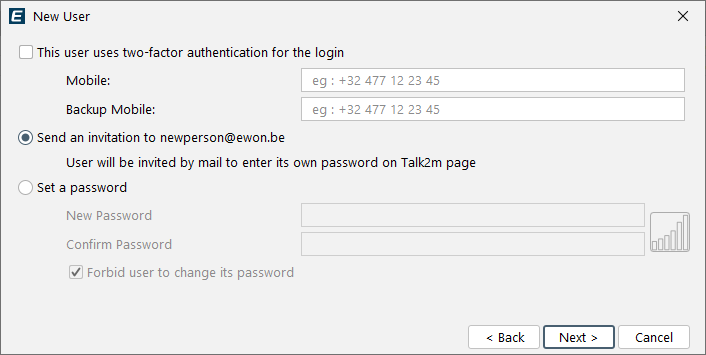
Under the Login approval method section, choose how the Talk2m system verifies each login attempt for this user.
-
None:
- The user logs in using only a username and password.
- No additional verification step is required.
-
Code by email:
- A one-time verification code is sent to the user’s registered email address.
- The user must enter the code received by email to complete the login.
-
Code by SMS (Two-factor authentication):
- A one-time verification code is sent to the user's mobile phone via SMS.
- The user must enter the code received by SMS to complete the login.
Select the Code by Email option to enable this feature for the user.
Managing Login Approval Settings
Ensuring Automatic Access Revocation with Email Code
To modify the settings for an existing user, select the user and open their Properties. In the "Permissions & Groups" section at the bottom of the Properties window, click Modify.
The displayed window allows you to configure whether the user can modify their own settings by enabling or disabling the "May edit own properties" option.
Special Use Case: Real-Time Approval of External Connections
- Enter your own email address in the Email field of the external user account.
- Disable the "May edit own properties" option for external users.
- Use the external user's email address as the User Name. This makes it easy to identify who requested access when you receive the verification code.
- Configure the "Remember this PC" setting according to your security requirements.
Note: The verification code is valid for up to 30 minutes after the login request is initiated. This gives you time to review and approve the access request before forwarding the code.
* This feature is also available in Talk2M Free, although some limitations apply to the available options and the management of Login Approval settings.
© HMS Networks AB 2025