This guide walks through the use-case to setup the Anybus Defender Industrial Firewall as an OpenVPN server, allow different clients to connects securely.
APPLICABLE PRODUCTS
Anybus Defender 4002, 6004, 6024 DPI/PROFW
Versions used in this article
This guide was created using Anybus Defender version 2.5.2-2025111723
PRE-REQUISITES
A PC or MAC where the OpenVPN client can be installed.
It is recommend to make sure you have the latest version of the OpenVPN client downloadable from https://openvpn.net/client/.
Anybus Defender configuration
Easier is to use the included Wizard to setup the OpenVPN server.
MENU - VPN, OpenVPN -> TAB: Wizards
Part 1 - Start Wizard
Add Certificate Authority - in this Wizard you can create a private CA.
Add Server Certificate - in this Wizard you can create a private Server Certificate using the previously setup CA.
Server Setup, select what interface to setup the server on.
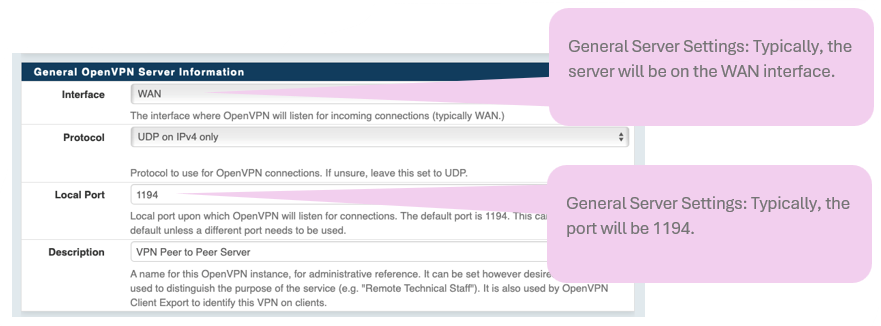
Server Setup – continued
A specific IP subnet must be assigned to the Tunnel network. In addition you must configure what networks to be announced through the VPN tunnel to be available toward the VPN clients.
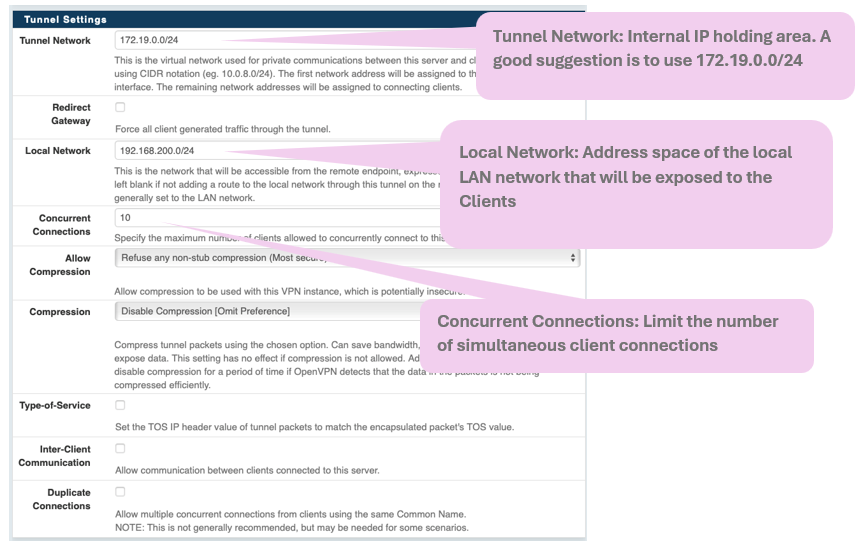
Add OpenVPN Rules
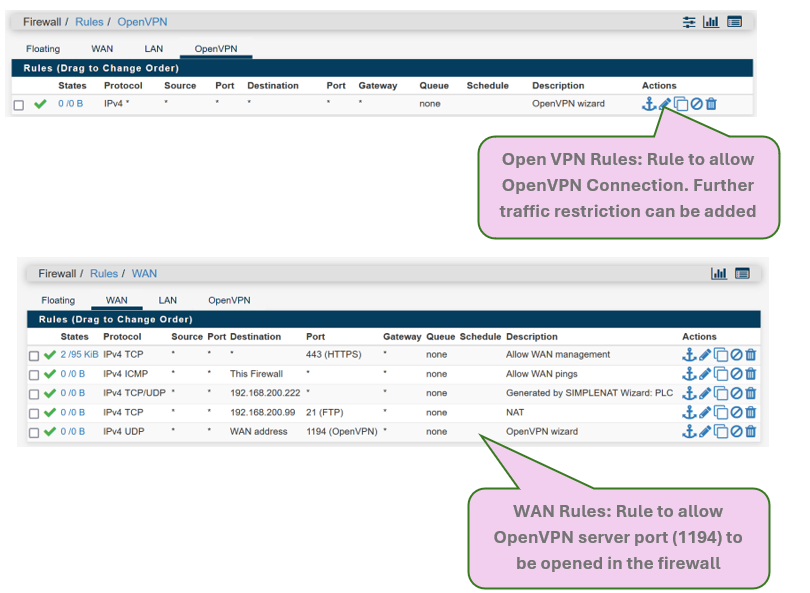
The Wizard will automatically create Firewall rules on the WAN interface to allow traffic to port 1194. And on the OpenVPN interface to allow traffic through the VPN tunnel. This rule is very open and should be tightened later towards actual needs.
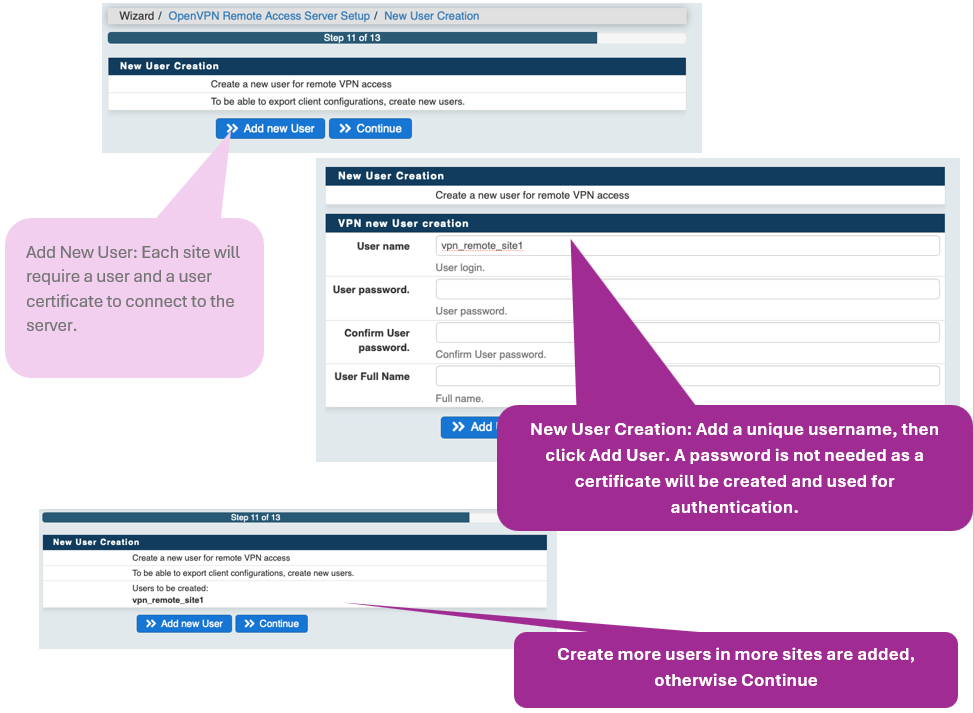
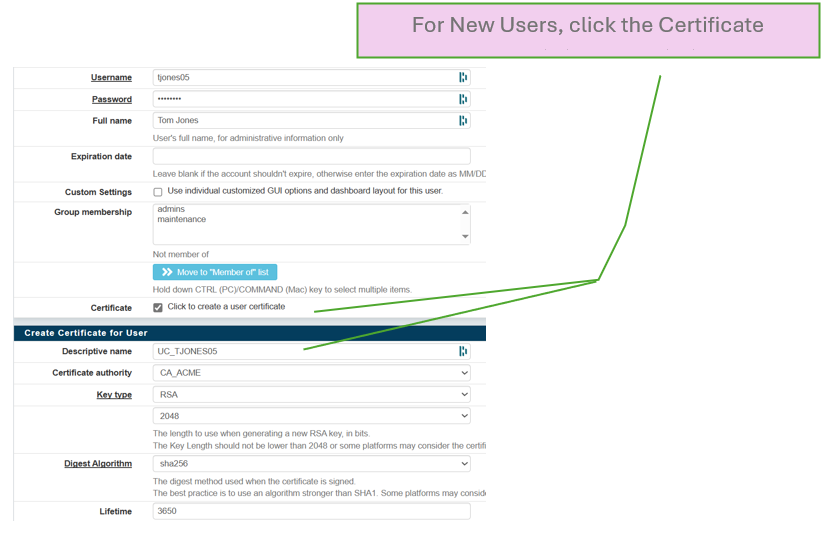
Add New User(s)
Verify the Wizard Implementation
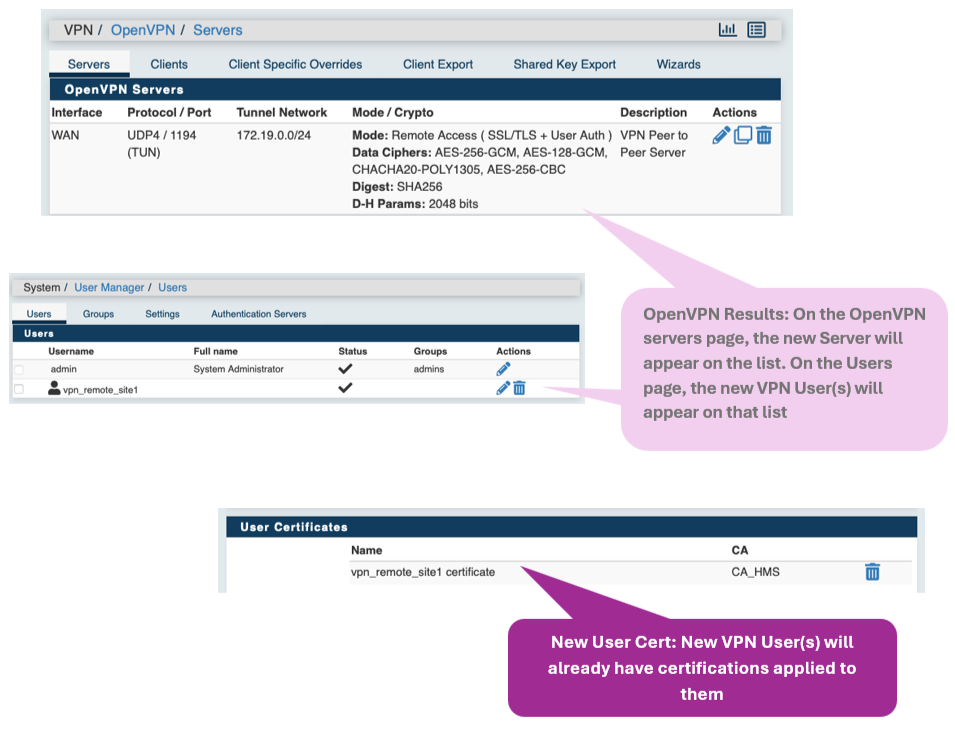
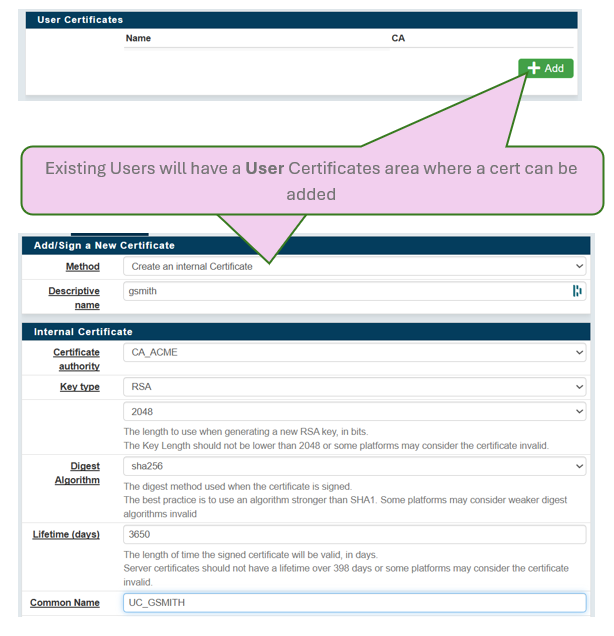
Adding VPN Users from Existing or New Users
OpenVPN Client Export Setup
On the Defender you can download a complete OpenVPN Client with configuration embedded. Alternatively, recommend to make sure you have the latest version, you can download a client software from https://openvpn.net/client/, and from this page on the Defender download inline configuration "Most Clients". This file includes the certificates, and is specific per user. Note the username in the 2nd column.
Under "OpenVPN -> Client Export" select the right Remote Access Server and scroll down to the right user-name. There select "Most Clients", a file with extention *.ovpn is downloaded.
On PC / Mac: OpenVPN Client App
After installing the OpenVPN client on the client PC, use the downloaded *.ovpn file to configure it.
In the client, elect "My Profiles"
Select the + to add:
Select "Upload File"
And select the downloaded file with extension *.ovpn
After this you are all set and should be able to Connect!
Increase Security - Tighten VPN Rules
The wizard has automatically added a "Allow All" rule on the firewall for traffic coming from the VPN clients. This is configure din Firewall -> Rules under the "OpenVPN" interface.
Change these rules to something more specific that is applicable for your installation.
The Rule on the WAN interface allowing traffic to porr 1194 is mandatory for the OpenVPN server to receive traffic from the clients.
VPN Status Screen
To see how many clients are connected browse to Status -> OpenVPN.
ADDITIONAL INFO (Optional)
Multiple VPN Servers
When you configure multiple VPN Servers it is advised to specifically assign an interface to each VPN server so that you can distinguish between them in Firewall Rules. Go to Interfaces -> Assignments and "Add" the missing interfaces. Give them a logical name, you will see them appear in Firewall Rules.
© HMS Networks AB 2025